Connectors
Connect Lungoor Notes to the tools you already use.
Overview
Lungoor Notes connects with your daily tools to make meeting summaries and action items useful. By integrating Google, Slack, Jira, and MCP, you can build a seamless workflow from transcription to ticket creation.
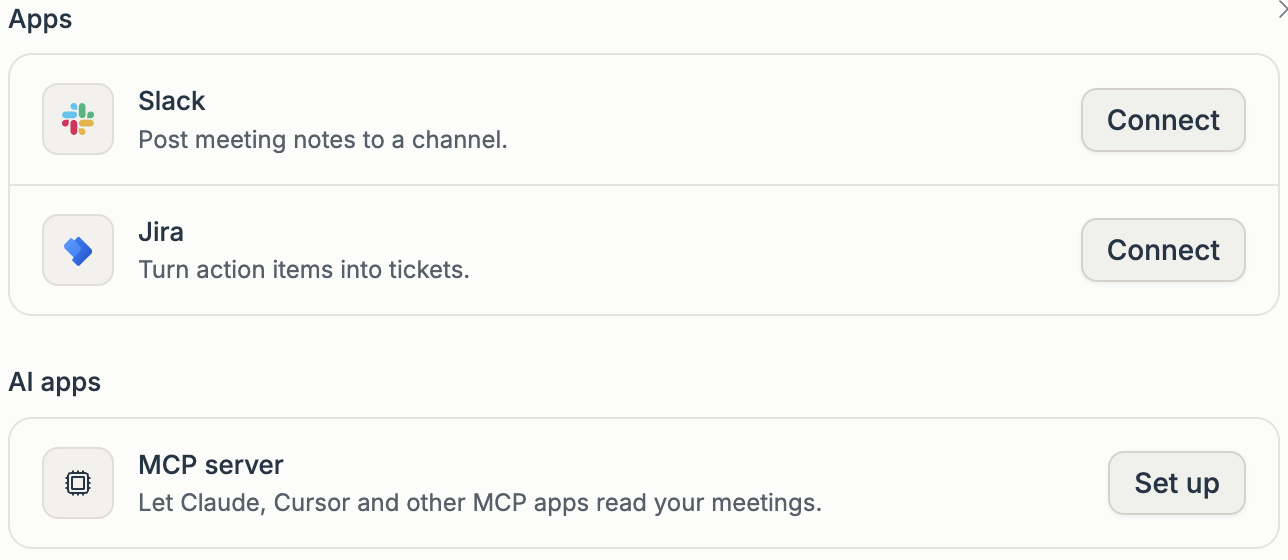
To open it, go to Settings and click Connectors under Integrations. It has two parts:
- Apps - Slack and Jira
- AI apps - MCP server
Integration Details
Configure these connections in Settings to align with your team's workflow:
Google OAuth powers secure sign-in and optional calendar synchronization. We only request read access to basic meeting metadata, and you can review our Privacy Policy for full details on OAuth scopes.
You'll find your calendars in Settings under Calendar.
Slack
You can push meeting summaries directly to any public channel or direct message. Nothing is ever posted automatically, and Slack cannot access your Google Calendar through our app.
To set it up, click Connect next to Slack.
Atlassian Jira
Connect your Jira account via OAuth to create tickets directly from your meeting transcripts. The app stores encrypted Jira tokens and lets you select projects, issue types, assignee, priority, and severity. You can even generate and review an issue draft from a transcript topic before publishing the ticket to Jira.
To set it up, click Connect next to Jira. Once it's connected, open a note's Action items tab, select an action item and click + Jira ticket.
AI Tools and MCP
For developer tools and advanced AI clients, click Set up next to MCP server. The steps are below.
MCP Server
The Model Context Protocol - or MCP - lets compatible AI clients list and call Lungoor Notes tools. This server gives you read-only access to your meetings from Cursor, Claude Desktop, or any client that supports SSE and Bearer token authentication. Every response is scoped to your signed-in user account. There are no tools that allow writing or deleting data.
Prerequisites
To use MCP, make sure you have the Lungoor Notes desktop app installed and signed in. You'll also need the backend MCP service URL: https://backend-lungoor-notes.lungoor.ai/mcp/sse
Generate an API Token
Follow these steps to create a connection token:
- Open the desktop app, go to Settings, and click Connectors under Integrations.
- Next to MCP server, click Set up.
- Click Generate your first token.
- Label your token so you know which device uses it.
- Copy the token immediately and save it somewhere secure. It won't be shown again.
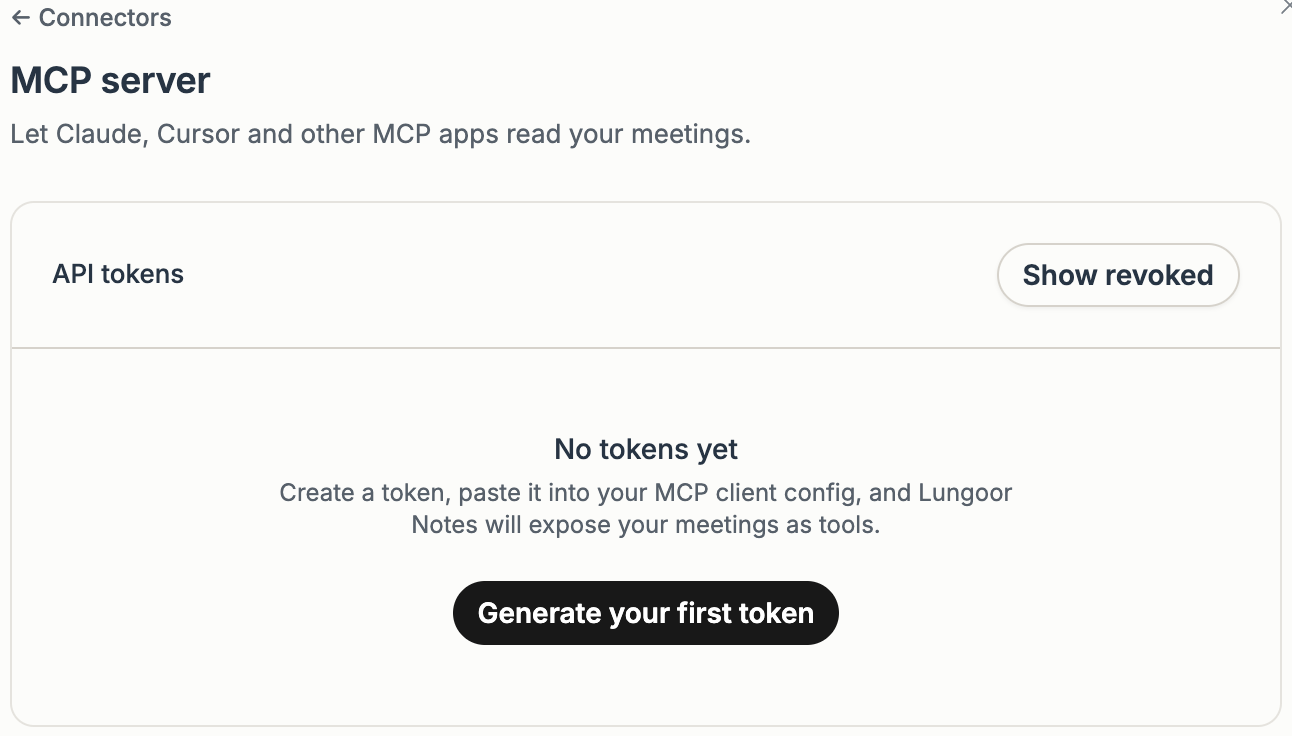
Tokens expire after 90 days, but you can revoke them anytime in the app if you lose your device or leak a configuration file. To see tokens you've already revoked, click Show revoked.
Client Configuration
To configure your AI client, replace the placeholder token in the configuration files with your active API token.
You'll also find these steps in the app, under Connecting a client on the MCP server screen. Use the Copy buttons there to copy the configuration and URL.
Cursor Setup
Add the following configuration block under the mcpServers key in your ~/.cursor/mcp.json file:
{
  "mcpServers": {
    "meetings": {
      "type": "sse",
      "url": "https://backend-lungoor-notes.lungoor.ai/mcp/sse",
      "headers": {
        "Authorization": "Bearer YOUR_TOKEN_HERE"
      }
    }
  }
}
Claude Desktop Setup
- Generate a token in Lungoor Notes and copy it. This token is shown only once.
- Open Claude Desktop - Settings - Connectors - Add - Add custom connector.
Set the name (default Lungoor, or any name you prefer) and the URL, then click Add.
CUSTOM CONNECTOR
Name: Lungoor
URL: https://backend-lungoor-notes.lungoor.ai/mcp/sse
Paste the token into the next input, then click Allow Claude to connect.
- Open Chat or Co-work, enable the Lungoor connector from the + menu if needed, then use it to ask about your meetings.
How It Works
Your client establishes a connection by opening a GET request to the SSE endpoint with your Bearer token. It then sends JSON-RPC messages on a POST request with the same token. All tool calls run securely, scoped directly to your unique user ID.
The system enforces a rate limit of 120 requests per minute per token, with a maximum of 3 concurrent SSE connections.
Tool Reference
Here are the available tools you can call through MCP:
Meetings (8 Tools)
| Tool Name | When to Use |
|---|---|
| getMeetings | Use this to get a baseline list of meetings, sorted newest first. This is best when you don't have a person, date, or text filter in mind yet. |
| getRecentMeetings | Use this for a quick look at your latest activity. It is faster than getMeetings when you only need recent sessions. |
| getMeetingsByDateRange | Use this to retrieve meetings within a specific time window. This is ideal when the user provides a clear date range. |
| getMeetingDetail | Use this to retrieve canonical metadata, participant lists, summaries, and meeting references for a single session. |
| getMeetingTranscript | Use this for deep Q&A or extracting evidence. Since transcripts are heavier, avoid this for simple list tasks. |
| getMeetingNotes | Use this when the answer depends on your own typed notes rather than the automated transcript or summary. |
| searchMeetings | Use this as a fallback text search on titles and summaries when the folder or date scope is unknown. |
| getMeetingMarkdown | Use this single-call tool to export the summary, transcript, and notes in markdown format for easy sharing. |
Folders (5 Tools)
| Tool Name | When to Use |
|---|---|
| getFolders | Use this as an entry point to discover folders when searching by project or topic before you list individual meetings. |
| getFolderDetail | Use this to resolve metadata and linked sessions for a single folder using its unique ID. |
| getMeetingsInFolder | Use this as your primary tool to list meetings once you know the folder context. |
| suggestMeetingsForFolder | Use this helper tool to get recommendations for organizing existing meetings into a folder. |
| suggestNewFolders | Use this to discover emerging themes and cluster suggestions from your meeting patterns. |
Insights, Recipes, and People (6 Tools)
| Tool Name | Category | When to Use |
|---|---|---|
| getCrossMeetingInsights | Insights | Use this for high-level analytics, trend analysis, and portfolio-level KPIs across multiple meetings. |
| listMeetingRecipes | Recipes | Use this to list all the automation templates and custom prompt recipes available in your workspace. |
| getMeetingRecipe | Recipes | Use this to fetch the details of a specific recipe using its unique ID. |
| getConnectedPeople | People | Use this as a first step to resolve contacts when someone asks about meetings with a specific person. |
| getOrganizationPeople | People | Use this for directory-wide lookups or to resolve people when contacts aren't found in your immediate history. |
| getPersonInteractions | People | Use this to fetch interactions and meetings associated with a resolved person, then filter by date or text. |
Tips
- Set up the Jira integration to draft, edit, and assign action items to your engineering board before you even close your meeting note.
- If you lose a device or expose a configuration file, go to Settings immediately and revoke that API token to secure your account.