To-do
Keep track of everything you need to get done.
Overview
To-do is your task list. Tasks don't show up here on their own. You can add them in two ways:
- Add a task yourself - type any task you want to keep track of
- Add an action item from a meeting - turn an action item from one of your notes into a to-do
Open To-do from the sidebar. The number next to To-do in the sidebar shows how many tasks are still open.
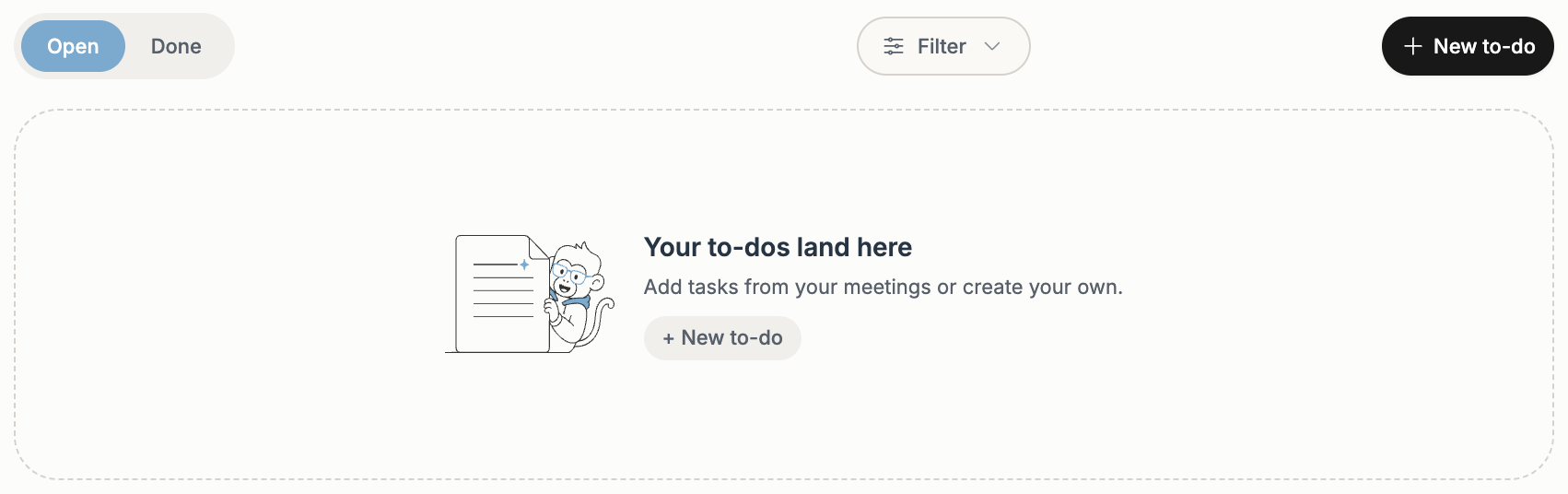
When you haven't added anything yet, the page says "Your to-dos land here. Add tasks from your meetings or create your own."
Open and Done
The page has two tabs at the top left:
- Open - tasks you still need to do
- Done - tasks you've finished. They show with a line through them
To mark a task as done, tick the box next to it.
Adding a To-do
1. Click New to-do
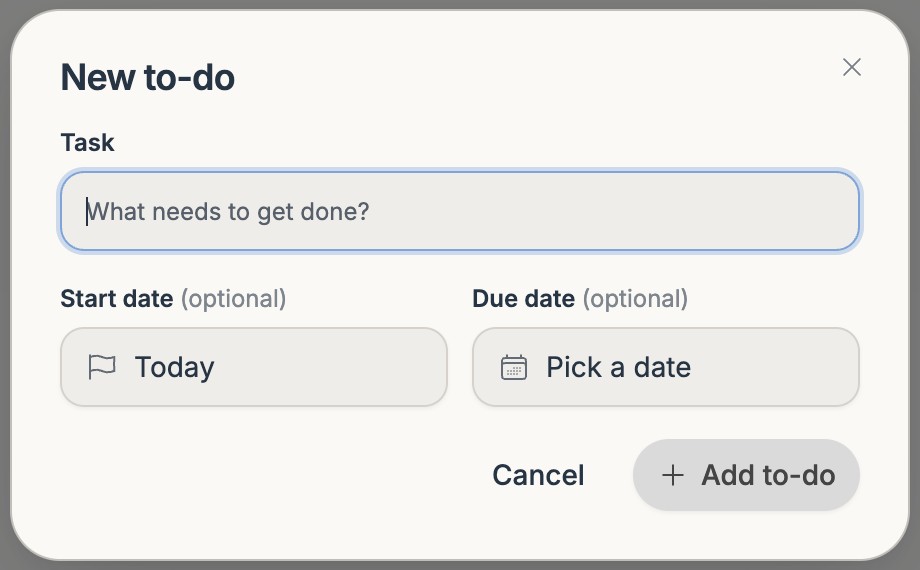
You'll find it in the top right. The New to-do window opens.
2. Type your task
In the Task box, write what needs to get done.
3. Pick your dates (optional)
Start date is set to Today. Click Pick a date to add a due date.
4. Click Add to-do
Your task appears in the Open tab. Click Cancel to close without adding it.
Adding from a Meeting
Only action items from a meeting can be turned into to-dos.
1. Open a note
Go to My meetings and open the note you want.
2. Open the Action items tab
You'll see all the action items from that meeting.
3. Select an action item
Hover over or click the action item you want. A card opens on the right.
4. Click + To-do
The action item is added to your To-do list, marked as from a meeting.
Your To-do List
Tasks are grouped by when they're due - for example, This week. Each task shows:
- The task name
- Where it came from and when it was added - for example, Added by you · Oct 30
- The due date, on the right
To-do Details
Click a task to see its details in a card on the right:
- Status - shows To do or Done. Click it to change the status
- Task name
- Start date and Due date
- Trash icon - delete the task
Filter
Click Filter to show only some of your tasks. The number next to each option shows how many tasks match.
| Group | Options |
|---|---|
| Source | All sources, From meetings, Added by you |
| Due | Any time, Overdue, Due today, This week, No due date |
Click Done to apply your filter, or Reset to go back to showing everything.
Clear Done
In the Done tab, click Clear done in the top right to clear your finished tasks from the list.
Tips
- Add a due date so you can use the Overdue and Due today filters
- Use the From meetings filter to see only tasks that came from your meetings' action items
- Tick tasks off as you go to keep your Open list short