Library
Shape your summaries and save the questions you ask most.
Overview
The Library is where you set up how Lungoor writes about your meetings. Open it from the sidebar.
It has two tabs:
- Summary templates - pick how the AI lays out your notes after every meeting
- Chat prompts - save questions you ask often, and use them in meeting chat
Each tab has two views. My templates or My prompts shows the ones you've made or added. Library shows ready-made ones you can add.
Summary Templates
Summary templates decide the flow of your meeting summary - which sections the AI writes and in what order. Each template tells the AI what kind of meeting it is and what to put in each section.
The My templates view shows the templates you've made or added. Use the search box to find one. If you don't have any yet, you'll see a Create template card.
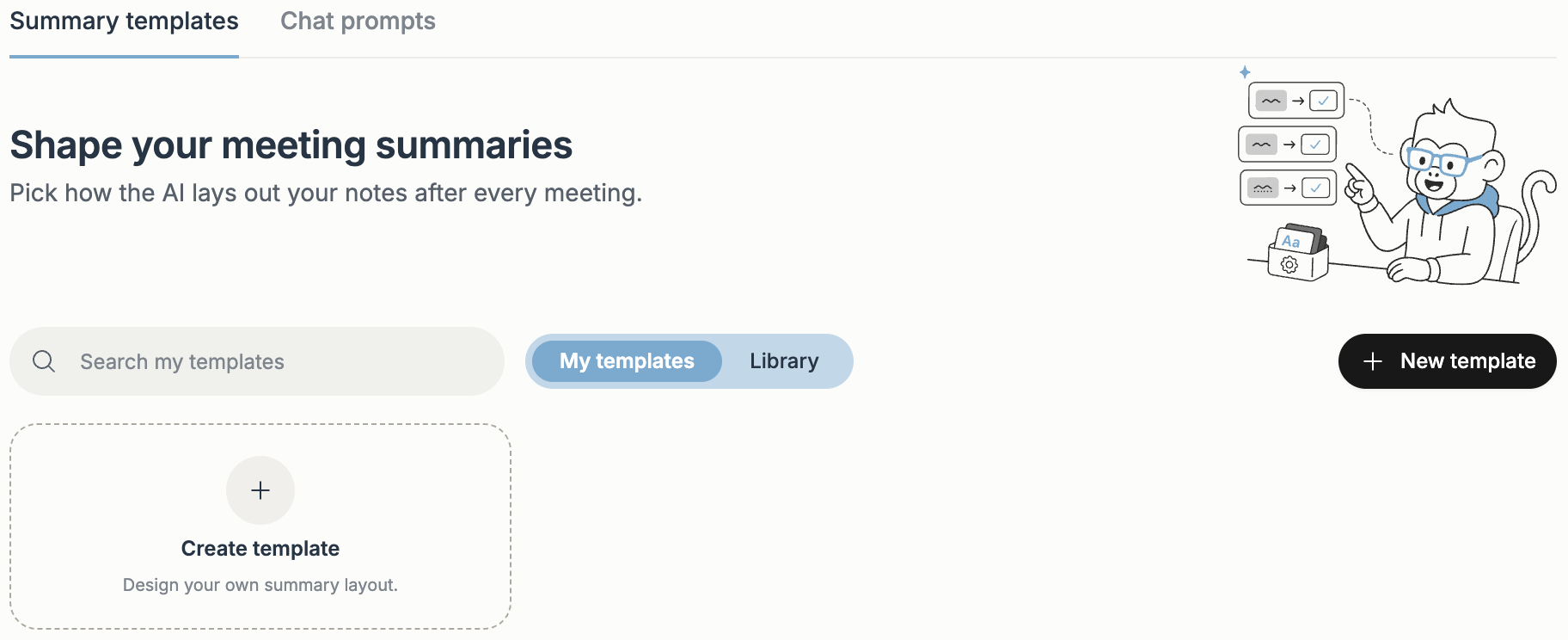
Create a Template
1. Click New template
You'll find it in the top right. You can also click the Create template card.
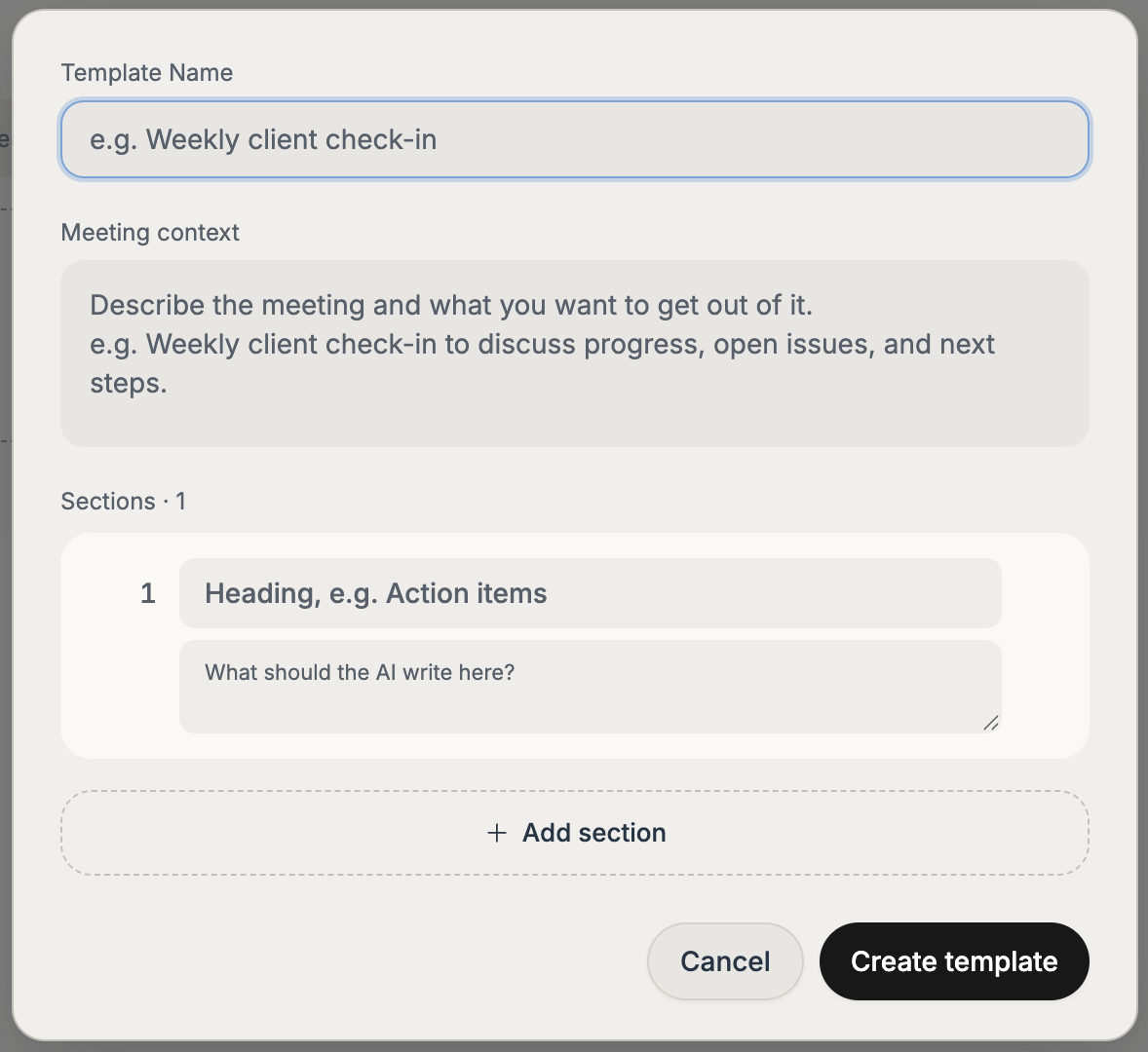
2. Name your template
In Template Name, give it a clear name - for example, Weekly client check-in.
3. Add the meeting context
Describe the meeting and what you want to get out of it - for example, Weekly client check-in to discuss progress, open issues, and next steps.
4. Add your sections
For each section, type a heading - for example, Action items. Then write what the AI should put under it. Click Add section to add more.
5. Click Create template
Your template appears in My templates. Click Cancel to close without saving.
Template Library
Click Library to browse ready-made templates for all kinds of meetings, like 1:1 meetings, architecture reviews and candidate interviews. Use the search box to find one.
Each template shows its name, a short description and how many sections it has. Click Show more at the bottom to see more templates.
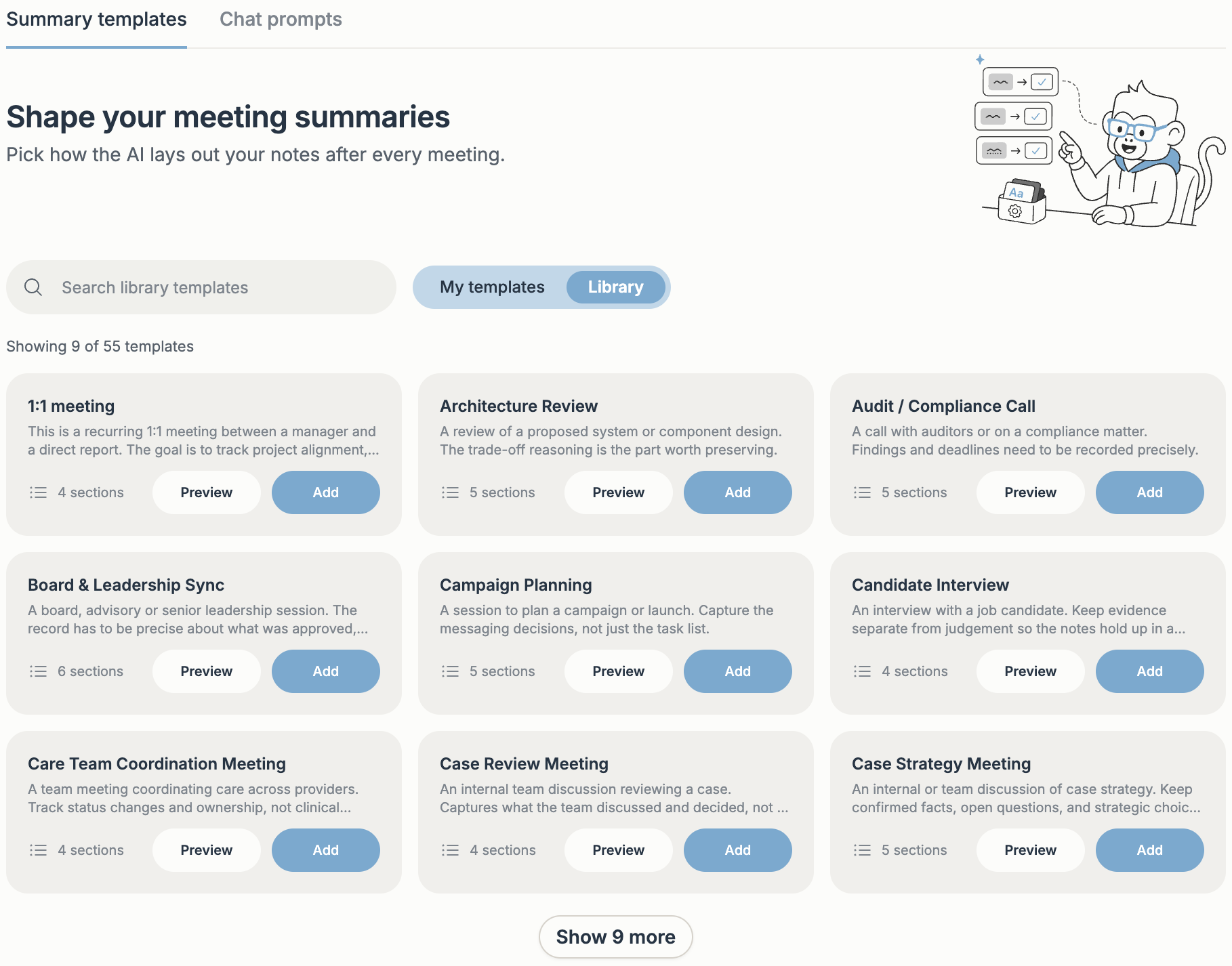
To add a template from the Library:
1. Click Preview
A window opens with the template's name, description and every section, with a short note on what the AI writes in each one. For example, the 1:1 meeting template has Discussion points, Feedback, Concerns & asks, and Commitments.
2. Click Add to My templates
The template is added to My templates. You can edit it after adding. Click Cancel to close without adding.
You can also click Add on the template card to add it straight away, without previewing.
Chat Prompts
Chat prompts let you ask anything about your meetings. Save the questions you ask often, then type / in meeting chat to use one.
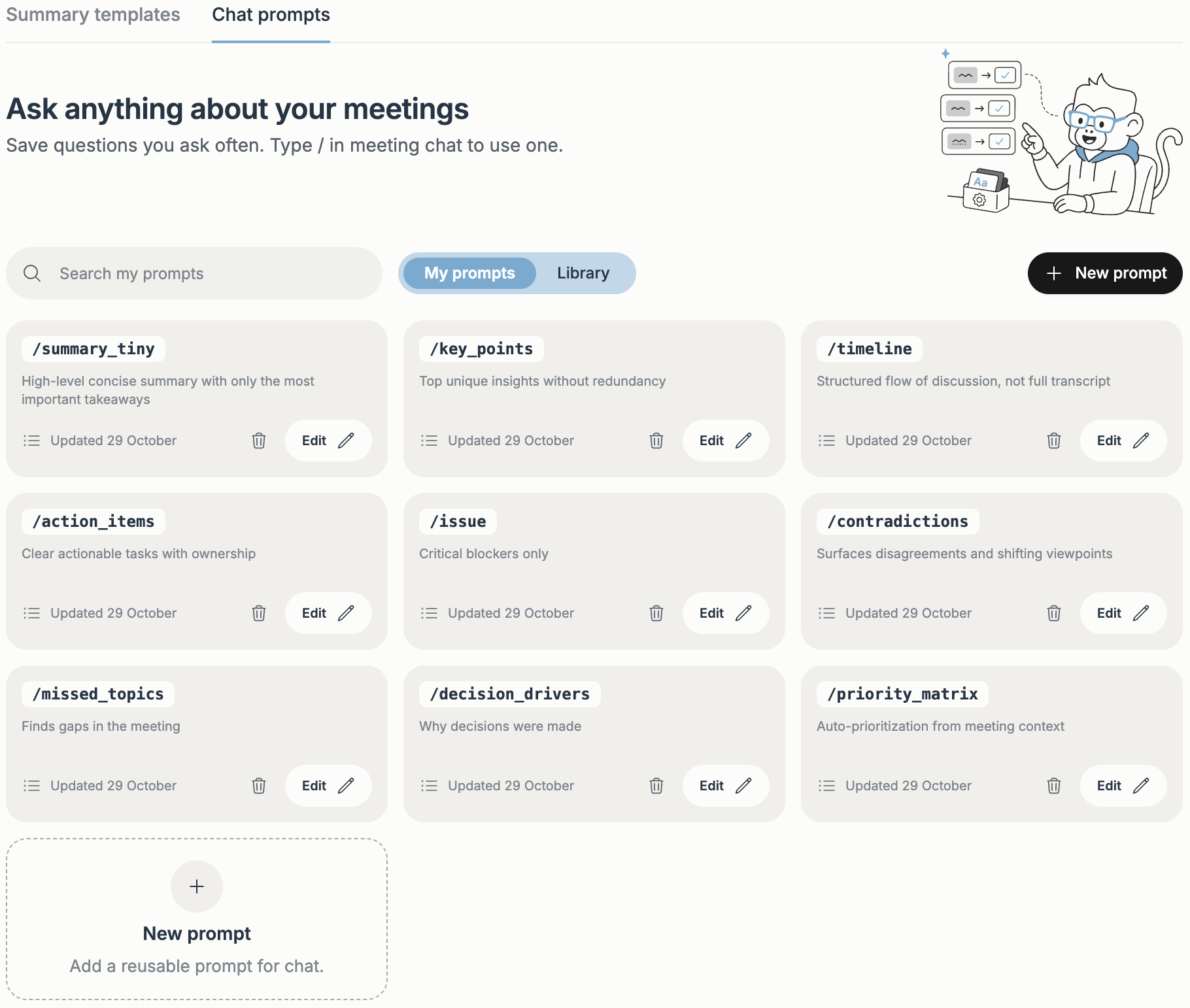
The My prompts view shows your saved prompts. Each prompt shows:
- Its command - for example, /key_points
- A short description of what it does
- When it was last updated
- Trash icon - delete the prompt
- Edit - change the prompt
Create a Prompt
1. Click New prompt
You'll find it in the top right. You can also click the New prompt card at the end of your list.
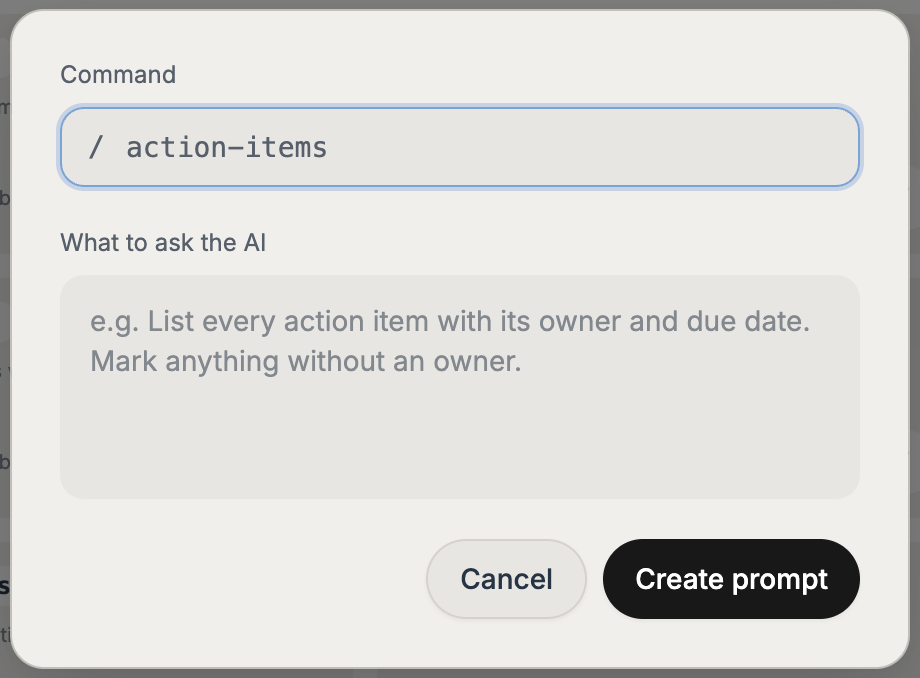
2. Type a command
This is what you'll type after / in meeting chat - for example, /action-items.
3. Write what to ask the AI
For example, List every action item with its owner and due date. Mark anything without an owner.
4. Click Create prompt
Your prompt appears in My prompts. Click Cancel to close without saving.
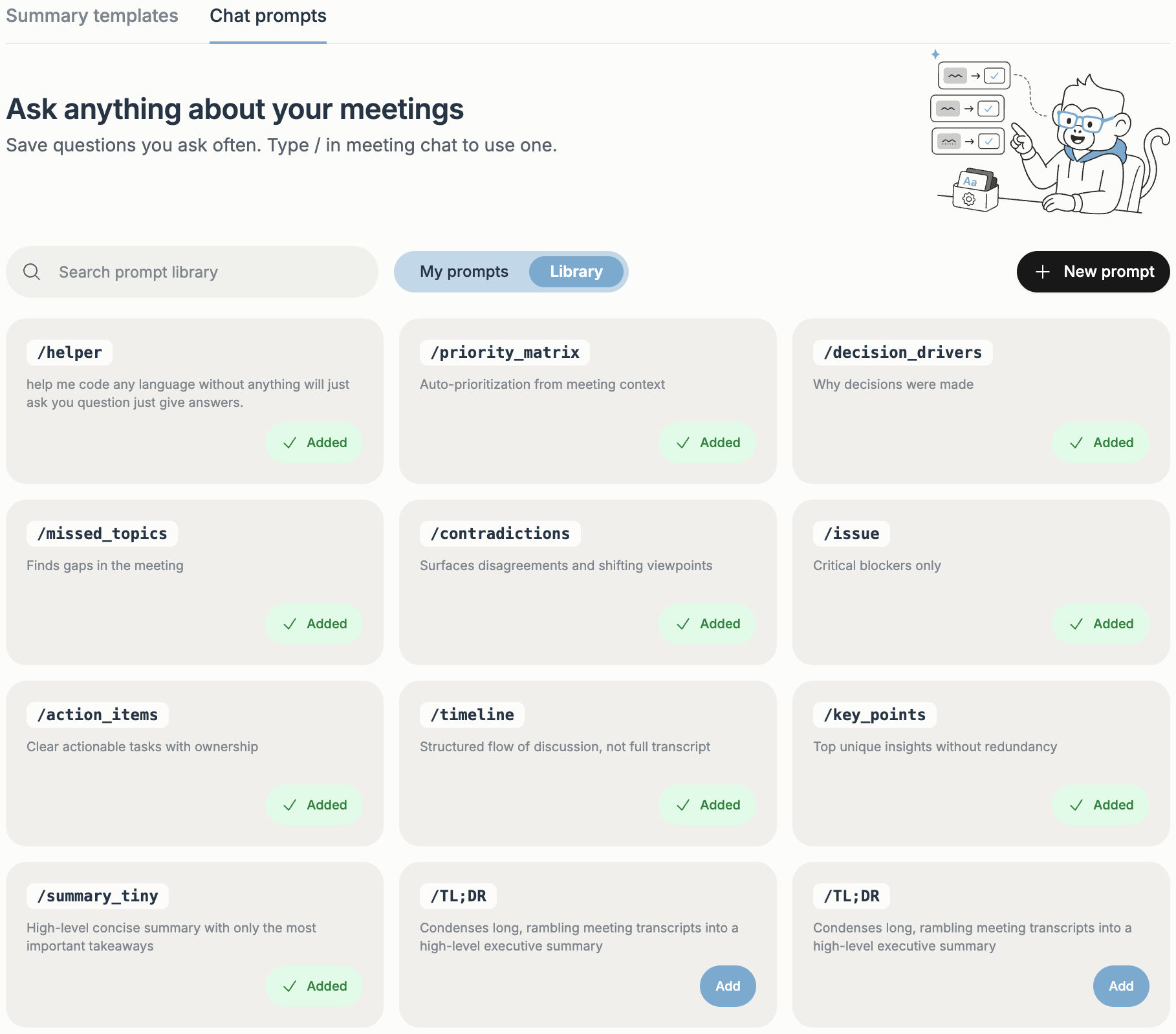
Prompt Library
Click Library to browse ready-made prompts. Use the search box to find one.
Each prompt shows its command and a short description. Click Add to add it to My prompts. Prompts you've already added show Added.
Using a Prompt
You use your prompts in meeting chat, inside any note.
1. Open a note
On the right side of the note, you'll see a chat box that says Ask lungoor.
2. Pick a prompt
Click one of the prompts under the chat box - for example, /summary_tiny. Click Prompts to see all of them, or type / in the chat box.
3. Read the answer
Lungoor answers right in the chat. Below the answer you can:
- Say more - get a longer answer
- Copy - copy the answer
- Thumbs up or down - tell us if the answer was helpful
Lungoor can make mistakes. Check important details against the transcript.
Tips
- Preview a Library template before adding it, so you know which sections it has
- Start with a template from the Library, then edit it to fit your meetings
- Keep prompt commands short so they're quick to type in meeting chat
- Make a template for each type of meeting you have often, like client calls or team standups