General
Choose how Lungoor Notes records and starts up.
Overview
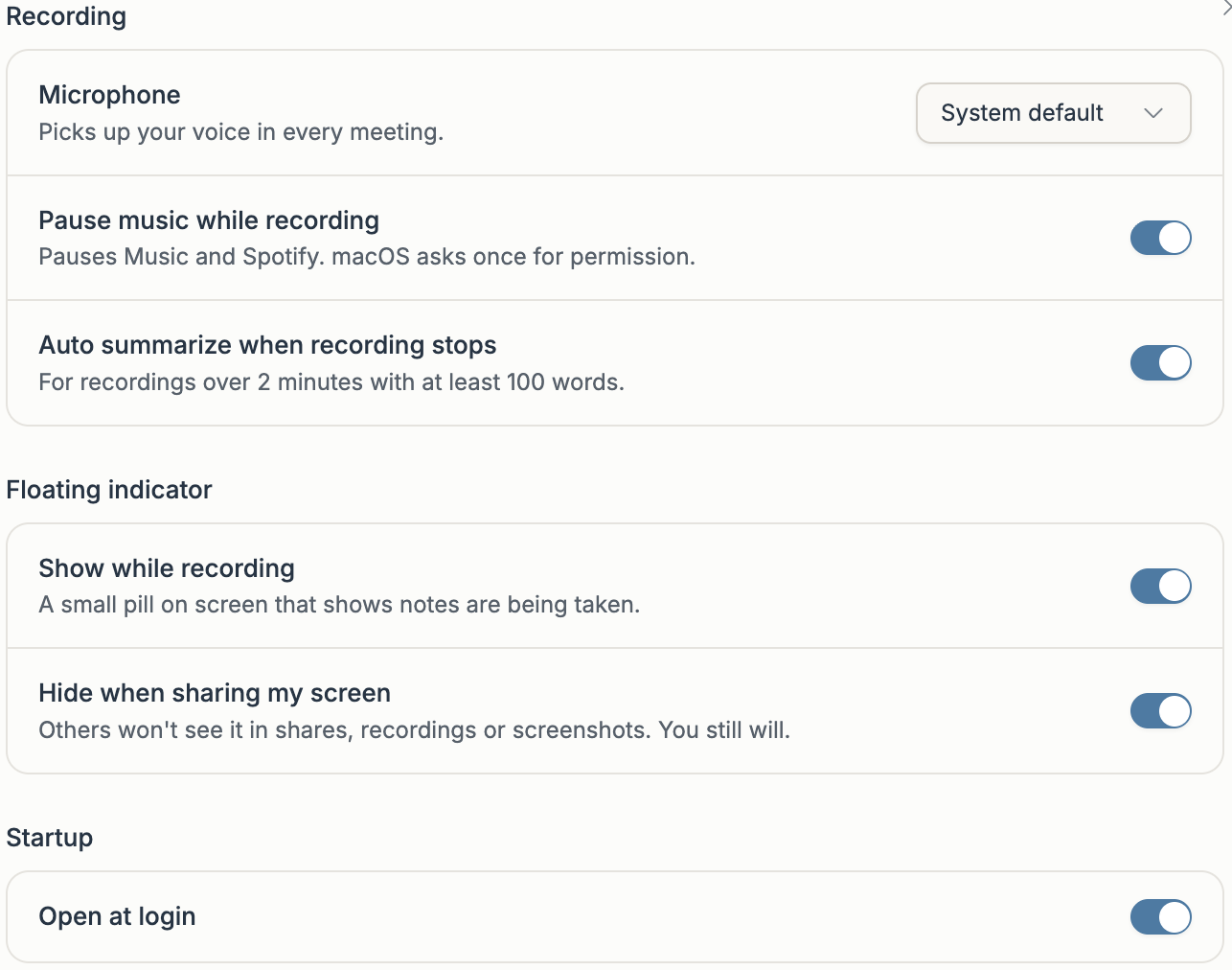
General is where you set up your microphone, recording options, the floating indicator and startup. To open it, go to Settings and click General under App.
Recording
Microphone
Pick the microphone that picks up your voice in every meeting. Click the menu on the right and choose one - for example:
- System default
- MacBook Pro Microphone (Built-in)
- ZoomAudioDevice (Virtual)
The list shows the microphones on your Mac, so yours may look different.
Pause music while recording
Turn this on to pause Music and Spotify while you record. macOS asks once for permission.
Auto summarize when recording stops
Turn this on and Lungoor creates a summary as soon as you stop recording. It works for recordings over 2 minutes with at least 100 words.
Floating Indicator
Show while recording
Turn this on to see a small pill on your screen that shows notes are being taken.
Hide when sharing my screen
Turn this on so others won't see the pill in screen shares, recordings or screenshots. You'll still see it.
Startup
Open at login
Turn this on to open Lungoor Notes automatically when you log in to your Mac.
Tips
- Keep Auto summarize on so your summary is ready as soon as the meeting ends
- Keep Hide when sharing my screen on, so the pill doesn't show up when you present
- If Lungoor isn't picking up your voice, check that the right microphone is selected