Shortcuts
Start a note from anywhere with a keyboard shortcut.
Overview
Shortcuts let you start a new note or open a meeting's note without opening Lungoor Notes first. To open it, go to Settings and click Shortcuts under App.
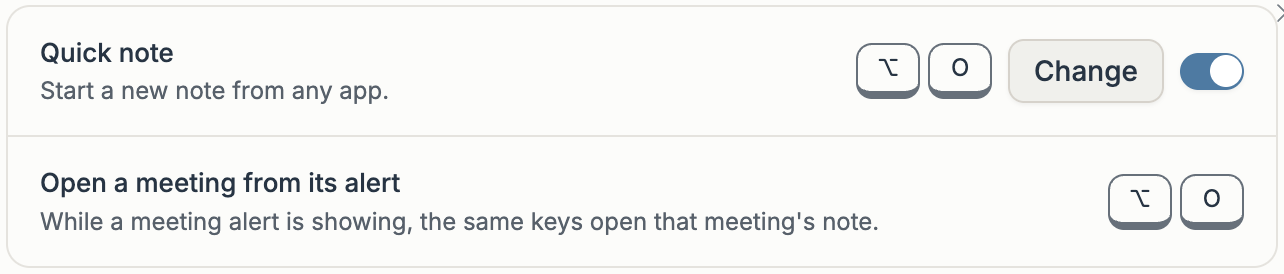
Your Shortcuts
| Shortcut | What it does | Default keys |
|---|---|---|
| Quick note | Start a new note from any app | ⌥ O |
| Open a meeting from its alert | While a meeting alert is showing, the same keys open that meeting's note | ⌥ O |
Both shortcuts always use the same keys. If you change the Quick note keys, the meeting alert keys change too.
To turn off the Quick note shortcut, use the switch on the right.
Change Your Shortcut
1. Click Change
You'll find it next to the Quick note keys.
2. Hold a modifier key
Hold ⌘, ⌃ or ⌥. You can hold more than one - for example, ⇧ ⌘.
3. Press a letter or number
Your new keys replace the default ones. From now on, both Quick note and Open a meeting from its alert use your new keys - for example, ⌃ 7.
To stop without changing anything, press esc or click Cancel.
Tips
- Press your Quick note keys from any app to start a quick note without switching windows
- When a meeting alert pops up, press the same keys to start that meeting's note straight away
- Pick keys that other apps don't already use, so your shortcut always works