Home
Your command center for everything Lungoor Voice.
Overview
The Home screen is the first thing you see when you open Lungoor Voice. It gives you quick access to recording, styling, and voice commands - everything you need to start speaking.
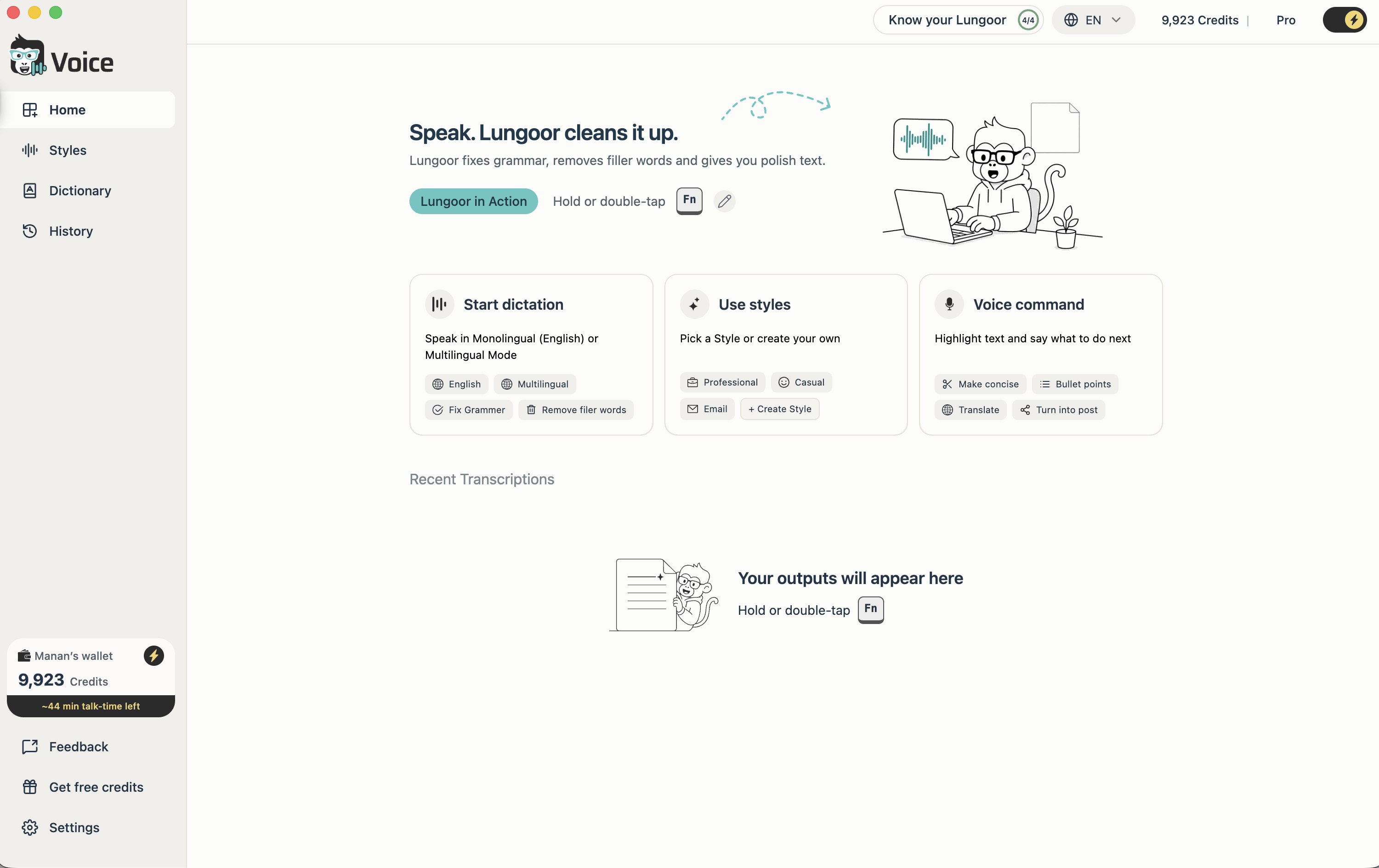
Hero Banner
At the top of the Home screen you'll always see:
Speak. Lungoor cleans it up.
Lungoor fixes grammar, removes filler words and gives you polish text.
The banner gives you two quick actions:
- Lungoor in Action - watch short video demos showing how Lungoor works across different apps
- Hold or double-tap Fn - start recording instantly
Start Dictation
Speak in Monolingual (English) or Multilingual Mode. Lungoor fixes grammar and removes filler words automatically.
- English - for clean English dictation only
- Multilingual - mix languages naturally in the same recording
- Fix Grammar - Lungoor cleans up your speech automatically
- Remove filler words - ums, uhs, and repetition get removed
Use Styles
Personalise your writing. Create a style once and assign it to your apps - Lungoor automatically rewrites your text in your preferred tone and format.
Pick from built-in styles:
- Professional - formal and polished
- Casual - friendly and conversational
- Email - clear and action-oriented
- Create Style - write your own custom style
Voice Command
Highlight text and say what to do next. Reshape any text hands-free without re-recording.
Available commands:
- Make concise - tighten it up
- Bullet points - turn into a list
- Translate - convert to another language
- Turn into post - rewrite for social media
Recent Transcriptions
Below these three sections, your recent transcriptions appear as you use Lungoor. Each shows the time, the style applied, and a preview of the content.
When you first open Lungoor, this section is empty. Start recording by holding or double-tapping Fn and your outputs will appear here.
Your Wallet
In the bottom left corner, your wallet shows:
- Your current credit balance - for example, 9,923 Credits
- Talk-time remaining - approximately how many minutes you have left at your current usage
- Quick access to get free credits
Your wallet balance updates in real time as you use Lungoor.
Sidebar Navigation
On the left side of the screen, the sidebar gives you quick access to every section:
- Home - your main dashboard and starting point
- Styles - manage and create your transcription styles
- Dictionary - add and edit your custom vocabulary
- History - browse and reprocess all your past transcriptions
- Feedback - share thoughts directly with the Lungoor team
- Get free credits - earn extra credits through referrals
- Settings - manage your account, audio input, shortcuts, and more
Top Right Corner
In the top right you'll see:
- Know your Lungoor - your onboarding progress tracker
- Language selector - choose your interface language
- Your credit balance - current wallet total
- Mode toggle - switch between Everyday (free) and Pro mode
Tips
- Click Lungoor in Action anytime to watch demos and understand how Lungoor works across different apps
- Your Recent Transcriptions section grows as you use Lungoor - go back anytime to review, copy, or reprocess old recordings
- Keep an eye on your talk-time remaining - it shows how many minutes of dictation you have left before you need to top up
- Use the mode toggle to switch between Everyday for quick notes and Pro for higher accuracy when you need it