Permissions
Grant Lungoor Voice the access it needs to work.
Overview
Lungoor Voice requires a few permissions from macOS to function properly. These permissions are standard and necessary - they let Lungoor access your microphone, control text input, and use Apple's speech engine.
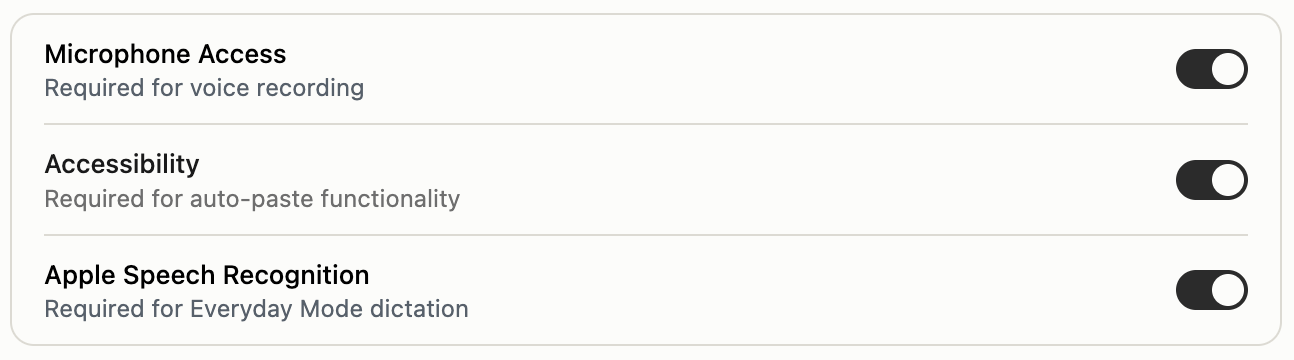
Microphone Access
Required for voice recording.
Lungoor needs microphone access to hear you when you press Fn or trigger the recording shortcut. Without this permission, Lungoor can't record any audio.
When you first open Lungoor, macOS will prompt you to allow microphone access. Click Allow to continue. You can always change this later in System Settings - Privacy & Security - Microphone.
Accessibility
Required for auto-paste functionality.
Accessibility permission lets Lungoor automatically paste the transcribed text into whatever app you're using. Without this, you'd have to manually paste the text yourself every time.
Lungoor asks for this on first launch. Click Allow to let Lungoor auto-paste text seamlessly. You can manage this in System Settings - Privacy & Security - Accessibility.
Apple Speech Recognition
Required for Everyday Mode dictation.
Everyday Mode uses Apple's built-in speech recognition engine to transcribe your voice. This permission lets Lungoor access that system feature.
macOS will ask for this permission when you first use Everyday Mode. Click Allow to enable it. This is managed in System Settings - Privacy & Security - Speech Recognition.
Checking Your Permissions
To verify that all permissions are granted:
1. Open System Settings
Go to System Settings on your Mac.
2. Navigate to Privacy & Security
Click Privacy & Security in the left sidebar.
3. Check each permission
- Microphone - make sure Lungoor is in the list and toggled on
- Accessibility - make sure Lungoor is in the list and toggled on
- Speech Recognition - make sure Lungoor is in the list and toggled on
If any permission is missing or off, toggle it on manually.
Troubleshooting
Lungoor won't record
Check that Microphone access is granted in System Settings - Privacy & Security - Microphone.
Text won't auto-paste
Check that Accessibility is granted in System Settings - Privacy & Security - Accessibility.
Everyday Mode shows an error
Check that Apple Speech Recognition is granted in System Settings - Privacy & Security - Speech Recognition.
Tips
- All three permissions are essential for Lungoor to work properly - grant them all when prompted
- You can revoke any permission anytime from System Settings, but Lungoor will stop working until you re-enable them
- If you accidentally denied a permission, just go to System Settings and toggle it back on - Lungoor will work immediately