Quick start
Go from zero to your first transcription in under 5 minutes.
Before You Begin
Make sure you've already installed Lungoor on your Mac. If not, head to the Installation guide first.
Your First Steps
The first time you open Lungoor, you'll see a Getting Started tour. It walks you through everything before your first real use. You can skip any step and come back later.
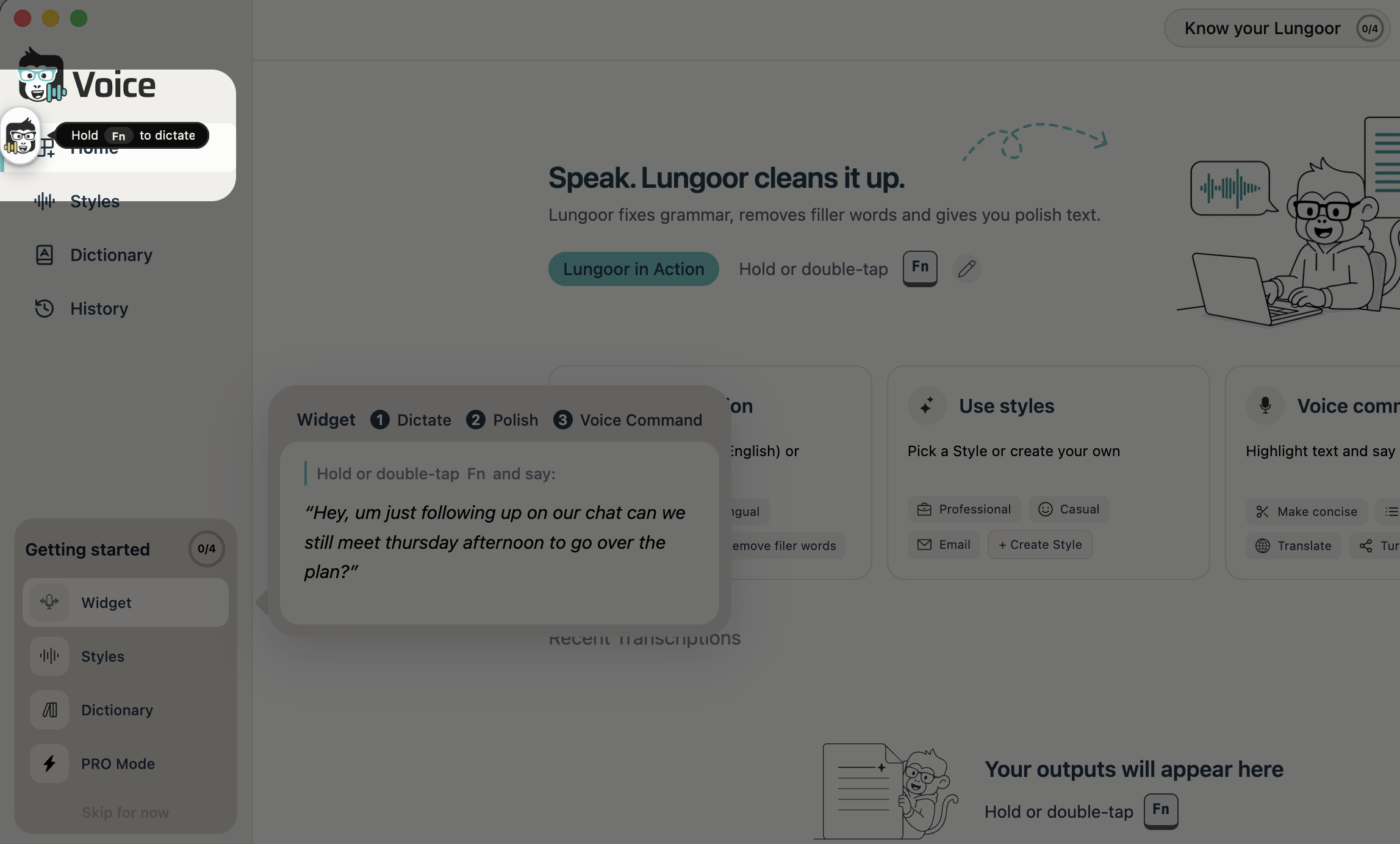
Click Know your Lungoor to start the 4-step setup, or Lungoor in Action to watch video demos of how Lungoor works.
Step 1 - Meet Your Widget
The Lungoor widget appears on your screen whenever you record. You never need to switch windows or open Lungoor manually.
To start recording from anywhere on your Mac:
- Hold Fn while speaking, release to stop
- Double-tap Fn to start, double-tap again to stop
The widget floats above every app you use. It's always one keystroke away, no matter what's open on your screen.
Step 2 - Set Up Your Styles
Styles tell Lungoor how to rewrite your words. Instead of a raw transcript, Lungoor shapes your speech to match a specific tone and format.
You can pick a built-in style like Professional, Casual, or Email, or create your own custom style that matches your exact voice.
Once you set a style, Lungoor automatically rewrites your text in that tone every time you dictate.
Step 3 - Train Your Dictionary
The Dictionary teaches Lungoor words it should never get wrong - your name, team names, product names, acronyms, and personal vocabulary.
For example if you say "Lungoor" and it transcribes incorrectly, just add it to your Dictionary and it'll be recognised correctly every time from that point on.
Step 4 - Choose Your Mode
Switch between Everyday and Pro Mode depending on what you need.
- Everyday is free with 2,000 weekly credits - great for quick notes and daily use
- Pro uses 1.5x credits per word - gives you better accuracy, multilingual input, and higher quality output
You can switch between modes anytime. Use Everyday for casual notes to keep your free credits running all week, and switch to Pro when accuracy really matters.
Your First Transcription
Now you're ready to actually use it. Here's what to do:
1. Open any app on your Mac - Mail, Messages, Notes, or anything else
2. Trigger Lungoor - Hold Fn or double-tap it
3. Speak naturally - Just say what you want to write, send, or capture. Don't worry about filler words or sentence structure.
4. Watch it land - Lungoor transcribes, polishes, and pastes it right where your cursor is. That's it.
See It in Action
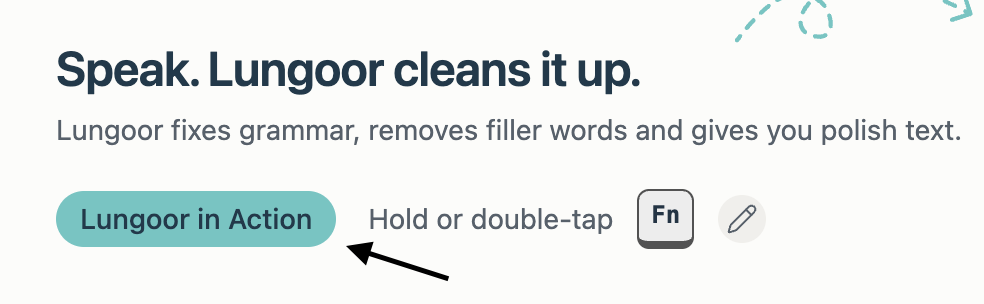
Not sure what to expect? Click Lungoor in Action on the Home screen to watch short video demos of Lungoor working across different apps - Mail, Messages, Notes, and more. You'll see exactly how the flow works.
You're Ready
Once you've done these 4 steps, Lungoor is fully set up for your workflow. From here on, just press Fn and speak.
The more you use Lungoor, the better it gets at understanding your style, vocabulary, and the way you think.