Widget
Customize how the Lungoor widget appears and behaves.
Overview
The Widget settings let you control where the Lungoor recording widget sits on your screen, how it reminds you during long dictations, and how it interacts with your text selection.
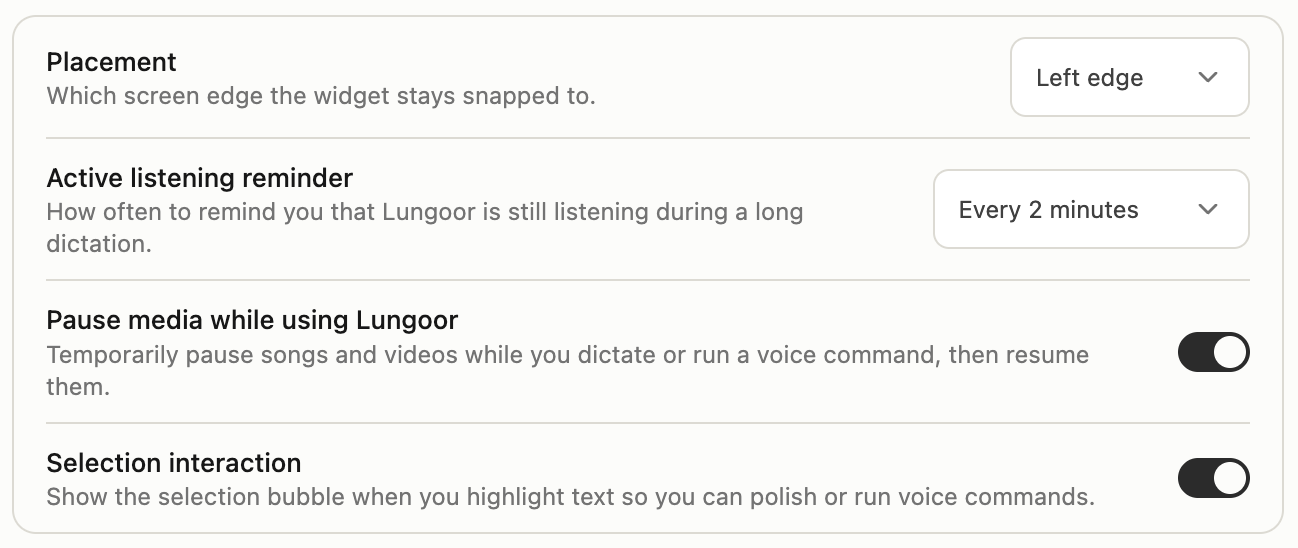
Placement
Which screen edge the widget stays snapped to.
Choose between:
- Left edge - widget stays on the left side of your screen
- Right edge - widget stays on the right side of your screen
Pick whichever side feels more natural for your workflow and screen setup.
Active Listening Reminder
How often to remind you that Lungoor is still listening during a long dictation.
If you're dictating something long and Lungoor is still recording, it sends you a gentle reminder that it's listening so you don't forget you're recording.
Choose how often you want this reminder:
- Every 2 minutes
- Every 3 minutes
- Every 4 minutes
- Every 5 minutes
- Every 10 minutes
Set it to shorter intervals if you want frequent reminders, or longer intervals if you prefer fewer interruptions during long dictations.
Pause Media While Using Lungoor
Temporarily pause songs and videos while you dictate or run a voice command, then resume them.
Enable this toggle to automatically pause any music, podcasts, or videos playing on your Mac when you start recording. Once you finish dictating, they resume automatically.
This prevents background noise from interfering with your transcription and gives you a cleaner recording.
Selection Interaction
Show the selection bubble when you highlight text so you can polish or run voice commands.
When you highlight text in any app and this is enabled, a selection bubble appears that lets you:
- Polish the text with your default style
- Run voice commands to reshape the text (make concise, bullet points, translate, etc)
This makes it easy to enhance or modify any selected text without opening Lungoor.
Tips
- Choose the widget placement based on which side of your screen you naturally look at most
- Longer active listening reminder intervals (5-10 minutes) work better if you usually dictate quick notes
- Enable Pause media if you often have music or videos playing in the background while working
- Selection interaction is powerful for quickly editing text - keep it enabled to get the most out of voice commands