Language & style
Choose your output language and default style for all transcriptions.
Language
Lungoor writes your text in this language.
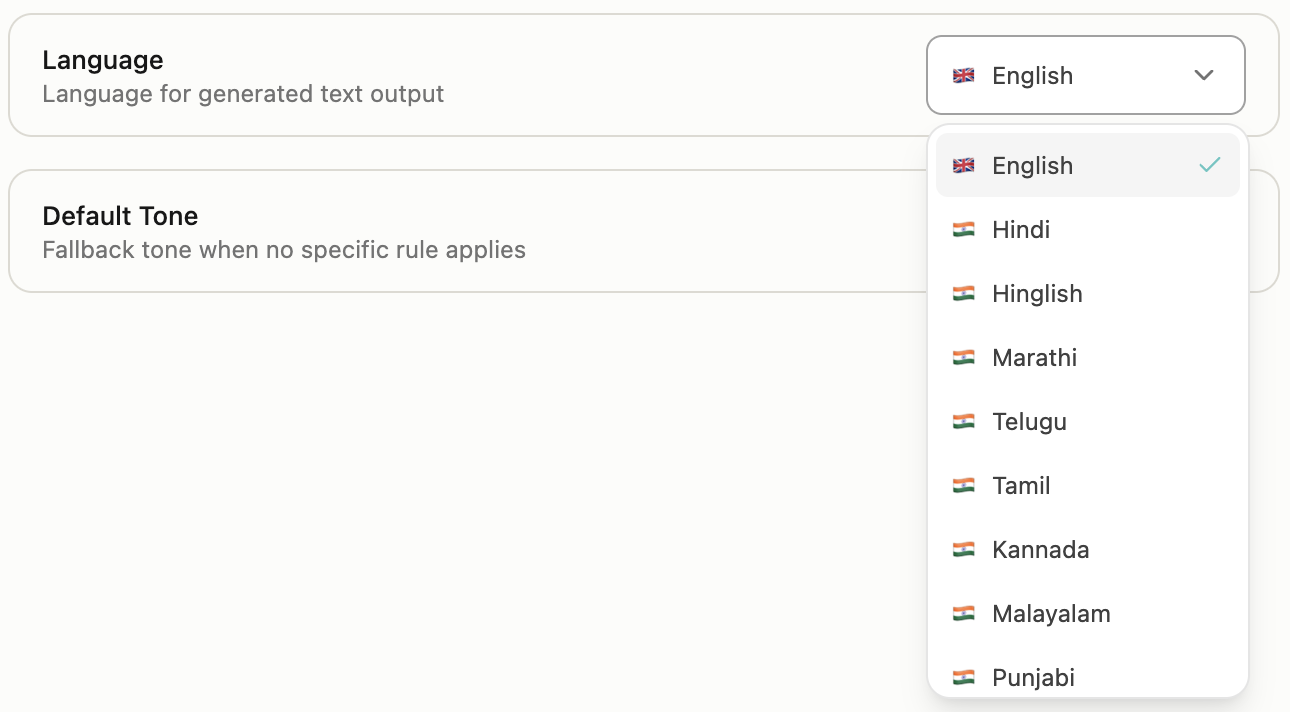
Lungoor supports transcription and output in 60+ languages, including 10 Indian languages. Choose your preferred language and Lungoor will automatically write your transcriptions in that language.
Indian Languages:
- English - default language
- Hindi
- Hinglish - mix of Hindi and English
- Marathi
- Telugu
- Tamil
- Kannada
- Malayalam
- Punjabi
- Gujarati
- Urdu
- Bengali
Global Languages:
- Afrikaans
- Albanian
- Arabic
- Azerbaijani
- Basque
- Belarusian
- Bosnian
- Bulgarian
- Catalan
- Chinese
- Croatian
- Czech
- Danish
- Dutch
- Estonian
- Finnish
- French
- Galician
- German
- Greek
- Hebrew
- Hungarian
- Indonesian
- Italian
- Japanese
- Kazakh
- Korean
- Latvian
- Lithuanian
- Macedonian
- Malay
- Norwegian
- Persian
- Polish
- Portuguese
- Romanian
- Russian
- Serbian
- Slovak
- Slovenian
- Spanish
- Swahili
- Swedish
- Tagalog
- Thai
- Turkish
- Ukrainian
- Vietnamese
- Welsh
How Language Works
When you select a language, Lungoor uses that language for:
- Transcribing your speech
- Writing the output text
- Applying styles and formatting
- Processing voice commands
You can change your language anytime. Your choice applies to all new transcriptions going forward.
Default Style
Used when no app-specific style applies.
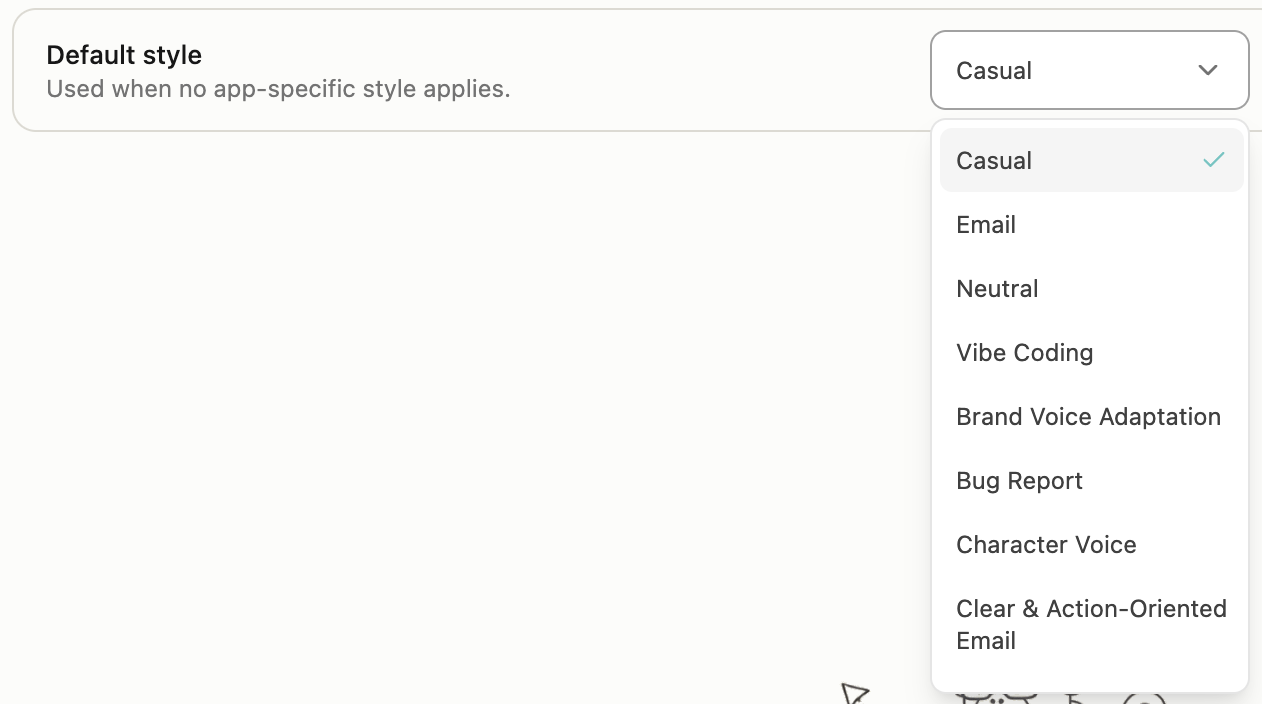
Your default style is the style Lungoor uses for transcriptions when you haven't assigned a specific style to the app you're using.
Available default styles:
- Casual - friendly and conversational tone
- Email - clear and action-oriented
- Neutral - balanced and professional
- Vibe Coding - for software engineering context
- Brand Voice Adaptation - align with a consistent brand voice
- Bug Report - structured for technical issues
- Character Voice - stay in character with a specific voice
- Clear & Action-Oriented - direct and task-focused
Setting Your Default Style
To set your default style:
1. Go to Settings
Open Lungoor and go to Settings from the sidebar.
2. Click Language & Style
Find the Language & Style section.
3. Choose your default style
Click the dropdown under Default Style and select which style you want as your default.
4. Your choice is saved automatically
The style applies immediately to all new transcriptions.
How Default Style Works
When you record a transcription:
- If you're in an app with an assigned style, Lungoor uses that app's style
- If you're in an app without an assigned style, Lungoor uses your default style
- You can always override by manually selecting a different style after recording
Tips
- Choose a language that matches how you naturally speak - if you mix English and Hindi, use Hinglish
- Your default style should match how you want most of your transcriptions to sound
- You can assign specific styles to specific apps, and keep a simple default style for everything else
- Changing your language or default style doesn't affect past transcriptions
- If you frequently use multiple languages, you can change your language setting between transcriptions
- The default style applies only when you haven't assigned a style to that specific app